If you've searched for an "Exness MCP server", an "FTMO MCP" or a "Pepperstone MCP", you probably found nothing official. That's normal: brokers and prop firms don't publish their own MCP servers for retail accounts. They give you a trading platform (MetaTrader 4, MetaTrader 5, cTrader, TradeLocker, Match-Trader, DXtrade), and that platform is what an MCP server has to talk to.
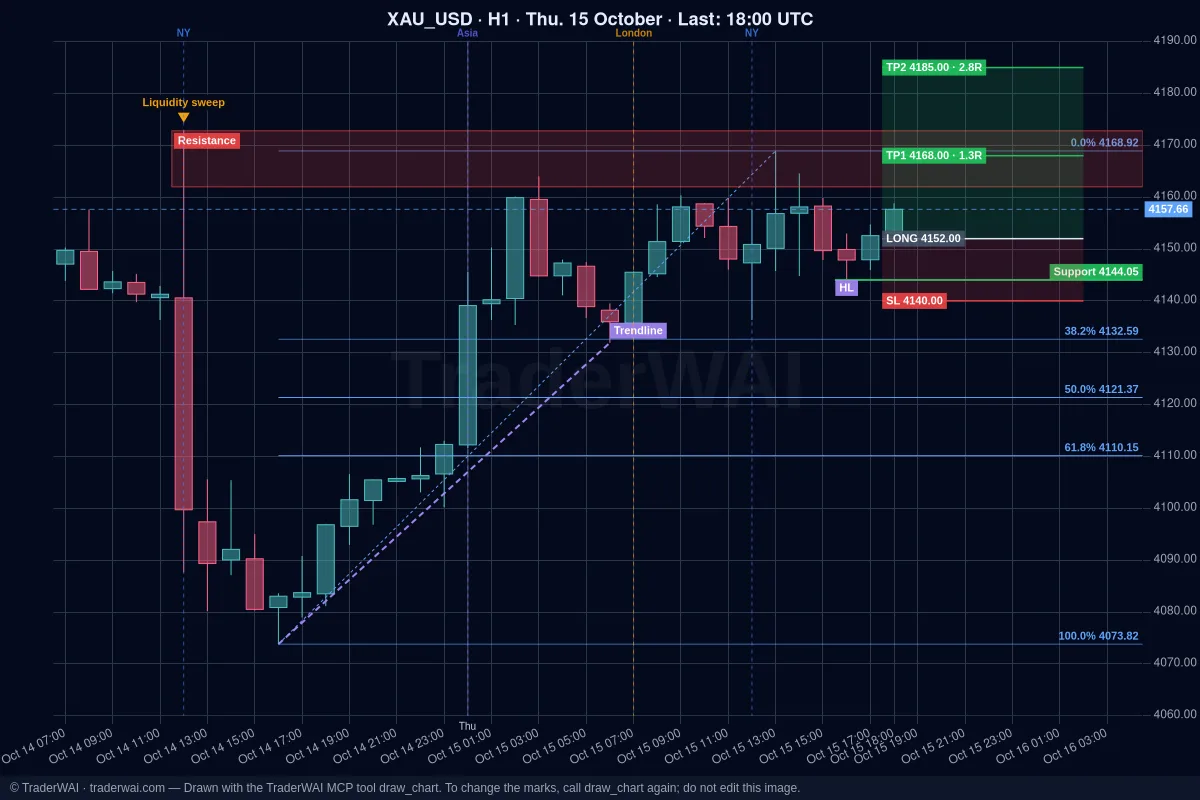
TraderWAI is one MCP server that works through those platforms. You add it once to Claude, ChatGPT or any MCP client, connect the account your broker or prop firm gave you, and your AI can read live charts, see your balance and positions, and place orders with a stop loss, within the limits you set.
What an MCP server does for trading
The Model Context Protocol (MCP) is the open standard AI assistants use to connect to outside tools. An MCP server exposes a set of tools that the AI can call. For trading, those tools look like this:
- Market data: live quotes, candles and chart images on any timeframe.
- Your account: balance, equity, open positions, pending orders and closed trades.
- Orders: market, limit and stop orders, always with a stop loss, plus modifying or closing positions.
- Rules: conditional orders that wait for a level, a candle close or a liquidity sweep, and exit rules on open positions.
The AI decides what to ask; the MCP server handles how: logging in to your platform, converting symbols, sizing from your risk, checking your limits and sending the order. Your AI never sees your broker password.
If you want the longer explanation, read AI trading assistant with MCP: what it is and how it works.
Why there is no "Exness MCP" or "FTMO MCP"
Your account doesn't live on the broker's website: it lives on a trading platform. An Exness account is a MetaTrader account. An FTMO challenge runs on MetaTrader or cTrader. Many newer prop firms use TradeLocker or Match-Trader. So the question isn't "does my broker have an MCP server?" but "which platform is my account on?"
That's why one MCP server can cover hundreds of brokers: if it supports the platform, it supports every broker on that platform, demo or live.
Popular brokers and prop firms: platform and how to connect
| Broker / prop firm | Platforms | How to connect with TraderWAI |
|---|---|---|
| Exness | MT4, MT5 | MetaTrader (Trader plan) |
| FTMO | MT4, MT5, cTrader | cTrader (Free) or MetaTrader (Trader) |
| Pepperstone | MT4, MT5, cTrader | cTrader (Free) or MetaTrader (Trader) |
| IC Markets | MT4, MT5, cTrader | cTrader (Free) or MetaTrader (Trader) |
| FundedNext | MT4, MT5, cTrader, Match-Trader | cTrader or Match-Trader (Free), MetaTrader (Trader) |
| The5ers | MT5 | MetaTrader (Trader) |
| FundingPips | MT5, cTrader, Match-Trader | cTrader or Match-Trader (Free), MetaTrader (Trader) |
| Blue Guardian | MT5, Match-Trader, TradeLocker | TradeLocker or Match-Trader (Free), MetaTrader (Trader) |
| HeroFX | TradeLocker | TradeLocker (Free) |
| XM | MT4, MT5 | MetaTrader (Trader) |
| Vantage | MT4, MT5 | MetaTrader (Trader) |
| Capital.com | Own API, MT4, MT5 | Capital.com API (Free) or MetaTrader (Trader) |
Brokers change their platform offer, and some only offer a platform in certain countries, so check what your account is on. The full list of brokers and prop firms is on the brokers page.
Connect your broker in 3 steps
1. Add the MCP server to your AI. The server URL is https://mcp.traderwai.com.
- Claude: Settings → Connectors → Add custom connector, name
TraderWAI, URL above, then Connect and sign in with Google. Custom connectors work on every Claude plan, including the free one. - ChatGPT: Plugins → Add → Add custom MCP server, URL above, authentication OAuth, then Connect TraderWAI. Works on every ChatGPT plan, Free included.
- Other clients (Claude Code, Cursor, VS Code, Gemini CLI, Grok on paid plans): add it as a remote MCP server with the same URL.
Your TraderWAI account is created when you sign in for the first time.
2. Add your broker account. In the TraderWAI panel, go to Settings → Brokers → Add account and choose the platform:
- MetaTrader 4/5: account number, password and server, exactly as they appear in MetaTrader (for example ICMarketsSC-Demo). The first connection takes 1 to 3 minutes.
- cTrader: you approve access with your cTrader ID; you don't share your password.
- TradeLocker, Match-Trader, DXtrade: the login you use on the platform and the server.
3. Ask. No special commands:
- "Show me gold on H4 and M15 and mark the key levels."
- "What's my equity and which positions are open on my FTMO account?"
- "Buy EUR/USD at market, stop below 1.0840, target 2R, risk 0.5% of my balance."
By default every order waits for your approval: you get a notification and approve it with one tap.
Step-by-step guides per AI and platform: Claude + MetaTrader 5, ChatGPT + MetaTrader 5, Claude + cTrader, Claude + TradeLocker.
MT4 MCP, TradeLocker MCP: same server
- MT4 MCP: MetaTrader 4 works exactly like MetaTrader 5. You don't install an EA or keep a terminal open on your computer: the terminal runs in the cloud.
- TradeLocker MCP: TradeLocker is on TraderWAI's Free plan, so you can test the whole flow on a demo account without paying.
- cTrader, Match-Trader, DXtrade: also on the Free plan.
- Crypto: Binance and Bybit connect with an API key that can trade but never withdraw.
How to choose the best brokerage MCP connector for Claude
There are open-source MetaTrader MCP servers you can run yourself, usually on a Windows machine with the terminal open, and there are hosted connectors. Whatever you pick, check these points:
- Platforms. Does it support the platform your account is on, including your prop firm's?
- Hosted or local. A hosted server keeps working when your laptop is off, and it works from the Claude or ChatGPT app on your phone.
- Mandatory stop loss. Can the AI send an order without a stop? In TraderWAI it can't.
- Risk limits the AI can't change. Max lots, open positions, trades per day, daily loss. The AI should be able to read them, never edit them.
- Approval. Can you approve each order before it goes out?
- Credentials. Is your password stored encrypted and hidden from the AI?
We compare the main options in best MCP servers for trading.
Start for free
Charts and market data are unlimited on TraderWAI's Free plan, and cTrader, TradeLocker, Match-Trader, DXtrade, Capital.com, Binance and Bybit accounts work on it. MetaTrader 4 and 5 accounts need the Trader plan. See the plans or add https://mcp.traderwai.com to your AI now and start with a demo account.
Common questions
Does Exness have an official MCP server? Not that we know of. Exness accounts run on MetaTrader 4 or 5, so you connect them through an MCP server that supports MetaTrader, like TraderWAI.
Is there an FTMO MCP? FTMO doesn't publish one. Your FTMO account runs on MetaTrader or cTrader, and TraderWAI connects to both. Check FTMO's current rules on AI-assisted trading first; see how to set up AI trading on a prop firm challenge.
Does my AI see my broker password? No. Credentials are stored encrypted on TraderWAI and are never shown to the AI. With cTrader you don't even give us a password.
Can the AI trade without me? Only if you turn on auto-execution for a symbol, with your own caps. By default you approve every order, and every order carries a stop loss.
Demo or live? Both. Start with a demo account: everything works the same.
Trading involves risk and you can lose money. TraderWAI is a technology tool, not investment advice.