Many brokers and prop firm challenges run on TradeLocker. Claude is great at reading a chart and reasoning about a trade, but on its own it can't see your TradeLocker account or send an order. TraderWAI is the bridge: a connector (an MCP server) you add to Claude once, so it can look at live charts, read your account and place orders on your broker, always within the limits you set.
It's also one of the cheapest ways to start: it works on Claude's free plan and TradeLocker is included in TraderWAI's Free plan.
What you need
- A Claude account. Custom connectors work on every Claude plan, including the free one.
- A computer to add the connector (claude.ai or the desktop app). After that it also works in the Claude app on your phone.
- A TradeLocker account, demo or live: your TradeLocker email, password and your broker's server (you see it when you log in to TradeLocker).
- A free TraderWAI account. TradeLocker is included in the Free plan.
Step 1: add TraderWAI to Claude
- On claude.ai, open Settings → Connectors.
- Click Add custom connector.
- Name:
TraderWAI. URL:https://mcp.traderwai.com. - Click Add, then Connect, and sign in with Google. If you don't have a TraderWAI account yet, it's created in this step.
- In a chat, enable TraderWAI from the tools button.
You can also follow the same steps on the guided page: connect Claude to TradeLocker.
Step 2: connect TradeLocker
In the TraderWAI panel go to Settings → Brokers → Add account → TradeLocker. Enter your TradeLocker email, password and server, and choose demo or live. If your login has several accounts, you can choose which one to use.
Start with a demo account, or with your prop firm challenge only once you've seen how Claude behaves. Your password is stored encrypted on TraderWAI and is never shown to Claude.
Step 3: ask Claude
No special commands: just ask in your own words.
Chart analysis
- "Show me NAS100 on M15 and H1. Is the trend up or down, and where's support?"
- "What's my TradeLocker balance and which positions are open?"
Claude looks at the chart image and the exact candle data. Analysis and charts are unlimited on every plan.
Charts drawn by the AI
Claude can also mark the chart for you: it decides what to draw and TraderWAI draws it on the real chart, with live candles, and the image appears in the chat. Levels, supply and demand zones, trend lines, channels, Fibonacci, structure labels (HH, HL, BOS, CHoCH) and the trade itself with entry, stop and targets.
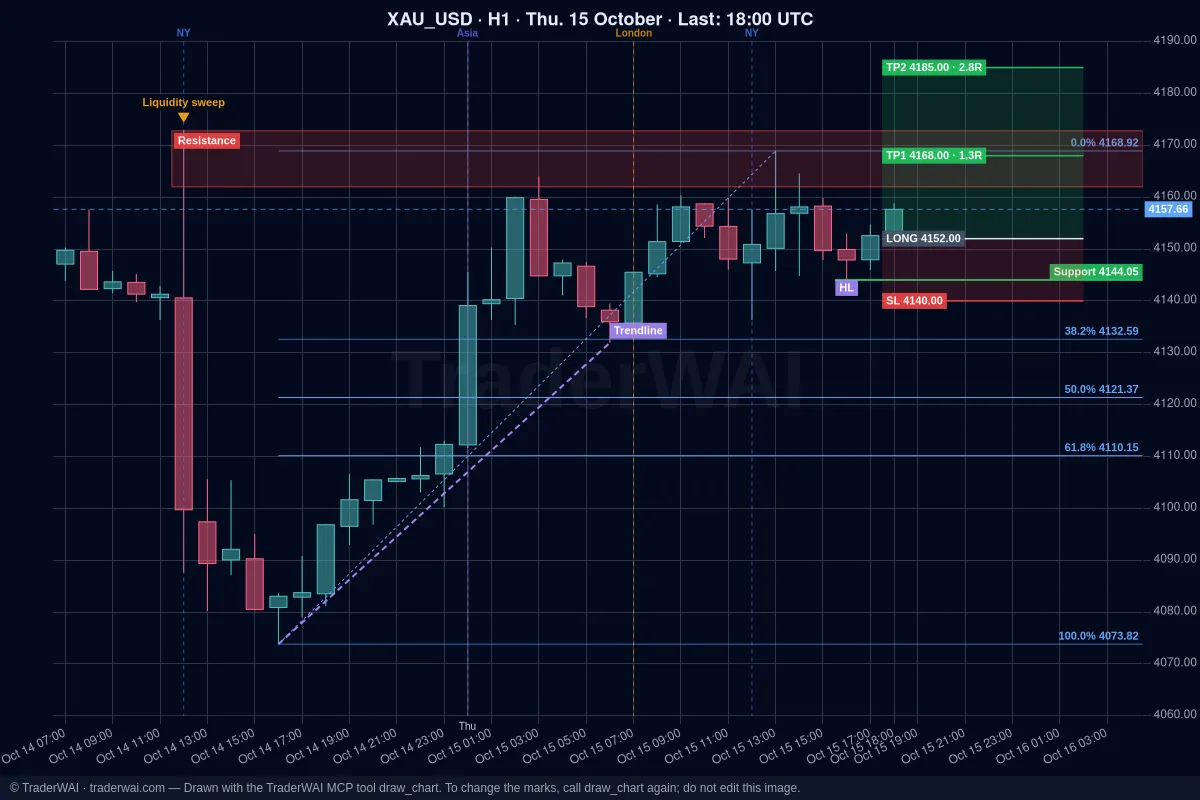
- "Draw on gold H1 the key support and resistance levels, a Fibonacci of the last impulse and the trade you'd propose, with stop and targets."
More in the AI draws on your chart.
Orders you authorize
- "Buy XAU/USD at market, stop below the Asian session low, target 2R, risk 1%."
- "Place a sell limit on EUR/USD at 1.0930 with a 15-pip stop and 2R target."
Before an order Claude checks your broker's live price, sizes the trade from your risk and checks your risk limits. By default every order waits for your approval: you get a notification and approve it with one tap.
Conditional orders and exit rules
A conditional order waits for a rule (a level crossed, a candle close, a range breakout, a liquidity sweep, a time) and then enters. TraderWAI checks it every minute with real candles, even if you close the chat.
You can also put exit rules on an open position: close it (all or part) or move the stop when the rule is met.
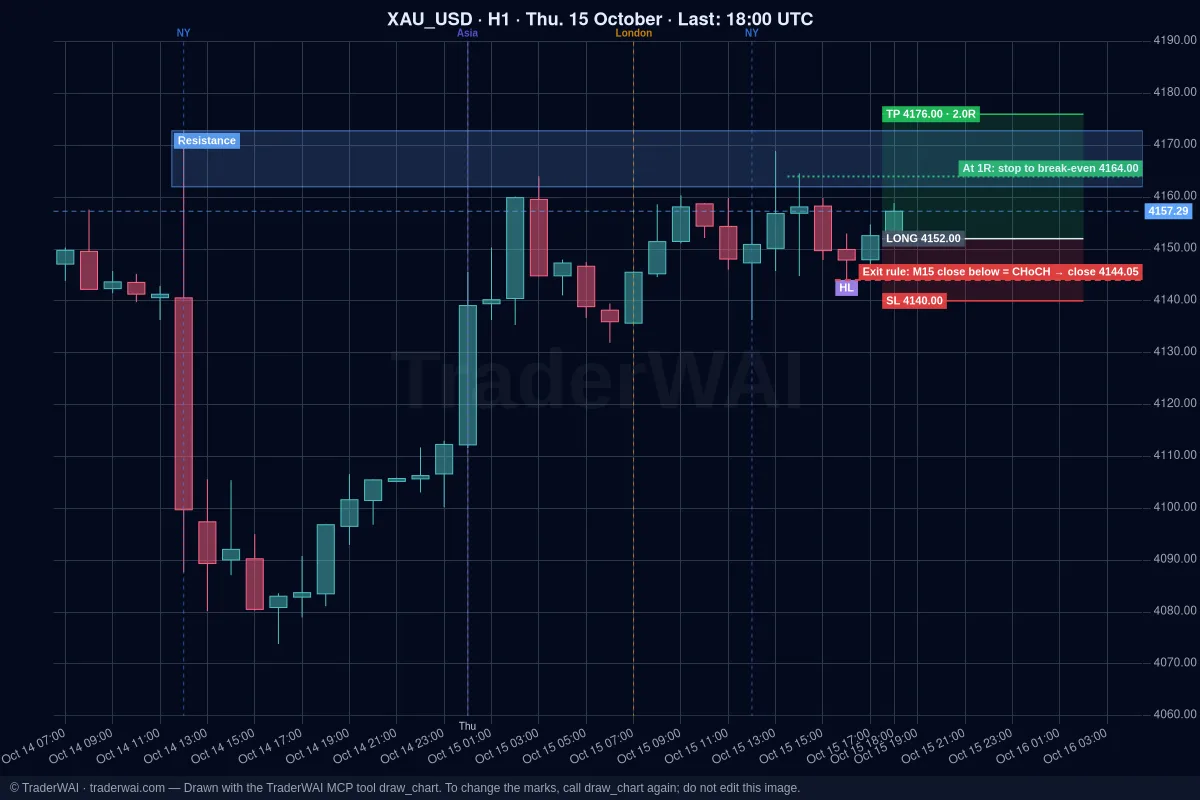
- "Watch my gold buy: if there's a CHoCH against it on M15, close it."
- "When EUR/USD reaches 1R, move the stop to break-even."
- "If the trade is still open at 21:00 UTC, close it."
A CHoCH isn't a magic condition: Claude turns it into a concrete level, for example "if an M15 candle closes below the last higher low, close the buy", taking that low from the candle data. Exit rules last up to 7 days and cancel themselves if the position closes first. For instant exits at a price, use your stop loss at the broker. More in exit rules: close on a CHoCH or move to break-even.
Using TradeLocker with a prop firm
Many prop firm challenges run on TradeLocker. Before you trade, set the firm's rules as risk limits in TraderWAI, in Settings → Risk for that account: max lots per order, open positions, trades per day and daily loss (from the Plus plan). On the Max plan you can add the typical prop firm rules: risk per trade, max drawdown, trading hours and allowed symbols.
Every order is checked against them before it reaches your broker. If an order would break a limit, it is not placed and Claude explains why. Claude can read your limits but never change them: only you can, from the website.
Set them slightly tighter than the firm's, and check that your firm allows AI-assisted trading. See prop firm rules with AI.
What each plan includes
- Free: TradeLocker and other platforms, 2 broker accounts, 5 order executions a day, 2 active conditional orders, 5 marked charts a day, unlimited analysis and charts, and orders to authorize.
- Plus ($9.90/month or $69/year, 7-day trial with a card): 3 accounts, 25 executions a day, auto-execution, 5 conditional orders, unlimited marked charts, 45-day backtests and basic risk limits.
- Trader and Max add more accounts, more conditional orders and MetaTrader; Max includes the full prop firm rules.
See pricing.
Common questions
Is it free? Yes. Claude's free plan allows one custom connector, and TraderWAI's Free plan includes TradeLocker with 5 order executions a day and unlimited charts.
Does Claude see my TradeLocker password? No. It's stored encrypted on TraderWAI and never shown to the AI.
Does it work with my prop firm? If your challenge runs on TradeLocker and the firm allows AI-assisted trading, yes. Set its rules as limits first.
Does Claude trade on its own? Not by default. Every order waits for your approval. Auto-execution is opt-in, from the Plus plan.
Trading CFDs and leveraged products carries a high risk of loss. TraderWAI is a technology tool: it is not investment advice and it is not a broker.