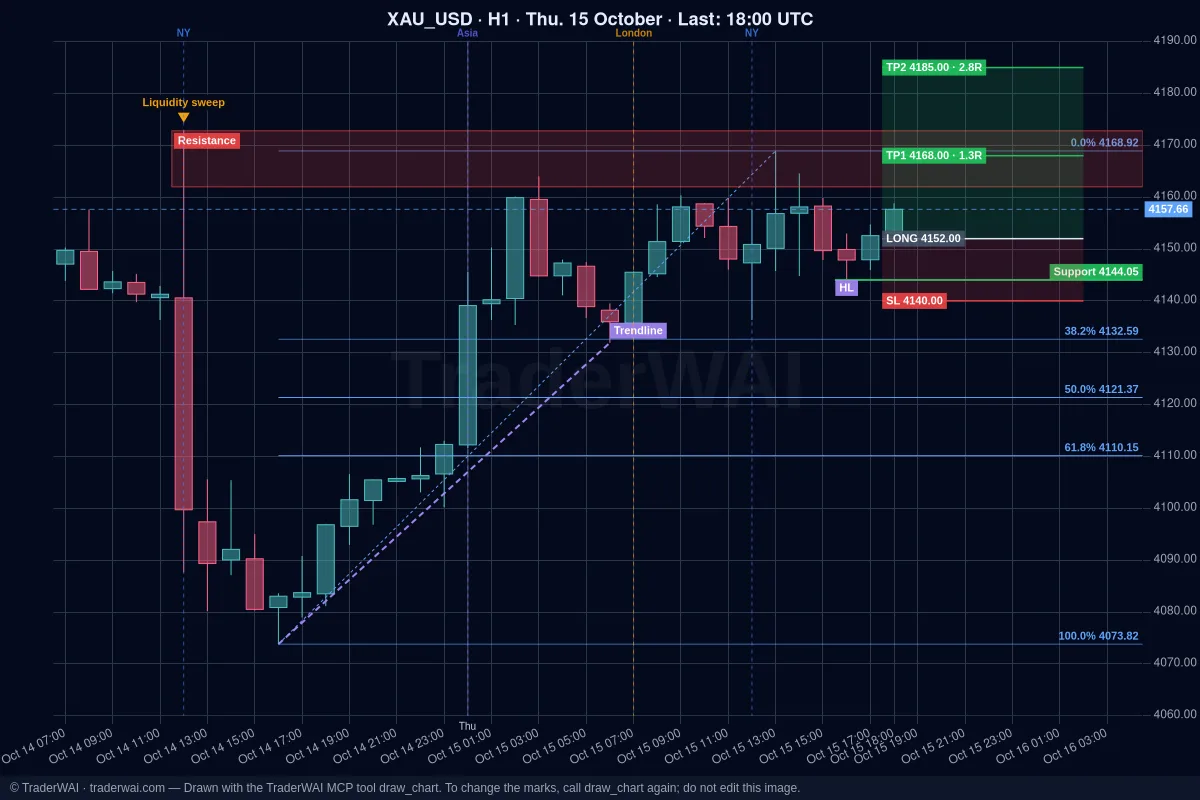

Cursor's Agent is good at turning an idea into something that runs. Point it at a trading idea, though, and it gets stuck: it has no market data, no backtesting engine and no way to reach your broker. TraderWAI fills that gap with one MCP server. Add it once and the Agent can read live charts, backtest a rule on 1-minute history and place orders with a stop loss on your account, while you decide what actually gets executed.
This guide installs it, then walks through a full loop in Agent mode: read the market, backtest a rule, turn it into a conditional order and lock everything down with a project rules file.
What the Agent gets
- Market data:
get_chart(chart image),get_ohlc(candles with exact prices and times),get_quote(your broker's bid/ask),get_market_structure(swings, BOS/CHoCH and zones), pluslist_symbolsandlist_timeframes. Forex, gold, silver, indices, oil and crypto. - Backtests:
backtest_strategyruns a rule on our 1-minute history and returns every trade, win rate, total R, drawdown and a breakdown by month, weekday and hour. It is pure calculation on the server, not the model guessing. - Your accounts:
get_broker_accounts,get_broker_account_state,get_positions,get_trade_resultsandget_risk_limits. - Orders:
execute_trade,modify_position,close_position,suggest_order(you approve it in the panel) and conditional orders (create_conditional_order,get_conditional_orders,cancel_conditional_order) that TraderWAI checks every minute.
Supported platforms: MetaTrader 5, cTrader, TradeLocker, Match-Trader, Binance and Bybit, plus MetaTrader 4, DXtrade, Capital.com and tastytrade in beta.
Step 1: add TraderWAI to Cursor
The quickest way is the install link: [Add TraderWAI to Cursor](cursor://anysphere.cursor-deeplink/mcp/install?name=TraderWAI&config=eyJ1cmwiOiJodHRwczovL21jcC50cmFkZXJ3YWkuY29tIn0%3D). Cursor opens with the server filled in; confirm it.
Or add it by hand to ~/.cursor/mcp.json (all projects) or .cursor/mcp.json (this project only):
{
  "mcpServers": {
    "traderwai": {
      "url": "https://mcp.traderwai.com"
    }
  }
}
Then open Settings → Tools & MCP, click Login next to traderwai and sign in with Google or Microsoft. There is no API key to copy or leak: access goes through OAuth, and your TraderWAI account is created on that first sign-in if you don't have one.
Step 2: connect a demo account
In the TraderWAI panel go to Settings → Brokers → Add account. Start with a demo account: everything works the same and mistakes cost nothing. cTrader asks you to approve access with your cTrader ID; MetaTrader, TradeLocker and Match-Trader ask for the login and server. Your credentials are stored encrypted and are never shown to the AI. For MetaTrader there is a step-by-step guide: connect Cursor to MetaTrader 5.
Step 3: a full loop in Agent mode
Open the chat in Agent mode. The prompts below are the ones we use; adjust the symbol and times to your market.
1. Read the market (no trades).
2. Backtest a rule. A classic London breakout:
The Agent turns that into a rule and calls backtest_strategy. The entry part looks like this:
"conditions": [
  {"type": "close_above", "timeframe": "M15",
   "level": {"ref": "session_high", "session": "asia"}},
  {"type": "time_window", "start": "07:00", "end": "10:00"}
],
"trade": {"side": "buy",
  "stop": {"type": "level", "ref": {"ref": "session_low", "session": "asia"}},
  "target": {"type": "rr", "value": 2}, "closeAt": "16:00"}
Developer tip: ask the Agent to save each rule as a JSON file in your repo (for example strategies/london-breakout.json). Now your strategies are versioned in git, and "backtest every file in strategies/ and give me a table" becomes a one-line prompt. Indicator rules work the same way, for example an EMA cross: compare with crosses_above between the H1 EMA 20 and EMA 50, filtered by price above the D1 EMA 200.
Read the result with a cool head. Two weeks gives a handful of trades: enough to check the rule does what you meant, not enough to prove it works. Ask for the breakdown by weekday and hour and for sensitivity: true, which reruns the rule with neighbouring parameters.
3. Turn it into a conditional order.
The Agent calls get_broker_accounts, get_risk_limits and then create_conditional_order. From then on it runs on TraderWAI's servers, checked every minute, so Cursor and your laptop can be closed. Two things to know: it fires once, and an entry rule lasts at most 24 hours, so ask the Agent each morning to recreate it with that day's levels. Use get_conditional_orders to see its status and cancel_conditional_order to remove it. If you prefer to confirm each trade yourself, ask for mode: "suggest": when the rule fires, the order waits in your panel for your approval.
Step 4: guardrails in .cursor/rules
A project rule keeps the Agent careful in every chat, not just when you remember to ask. Create .cursor/rules/trading.mdc:
---
description: Safety rules for trading with the TraderWAI MCP tools
alwaysApply: true
---
# Trading with TraderWAI

- Use a demo account unless I name a live account in this chat.
  Call get_broker_accounts first and say which account you will use.
- Never call execute_trade, execute_trade_multi, modify_position,
  close_position, create_conditional_order or set_auto_execution_config
  without first showing me: account, symbol, side, entry, stop loss,
  take profit and size. Wait for my explicit "yes".
- Every entry has a stop loss. Size by risk: at most 0.5% of the
  balance lost if the stop is hit.
- Call get_risk_limits before proposing a trade and stay inside them.
  If a tool returns RISK_LIMIT or PLAN_LIMIT, stop and explain.
  Never retry or work around it.
- Backtest with backtest_strategy, with realistic costs, before creating
  a conditional order. Never compute backtests yourself from get_ohlc.
- Never turn on auto-execution unless I ask for it in this chat.
Also keep Cursor's auto-run off for the TraderWAI order tools, so every call shows a button you have to click. The rules file and Cursor's own confirmation are two independent locks.
Starter repo
To skip the setup, clone traderwai-cursor-starter: it has the mcp.json, a rules file like the one above (demo first, explicit confirmation before every order) and ready-to-use prompts for each step of this guide.
Plans
Charts and market data are unlimited on every plan, including Free. Free also covers 5 backtests a day over the last 14 days, 1 broker account, 5 order executions a day and 2 active conditional orders, enough to run the whole loop on a demo account. cTrader, TradeLocker, Match-Trader, DXtrade, Capital.com, tastytrade, Binance and Bybit work on Free. Risk limits enforced on every order (max risk per trade, daily loss, prop firm rules) start with Plus, and MetaTrader 4/5 needs the Trader plan. Longer backtest history comes with paid plans. See pricing.
Common questions
Does my computer have to stay on? Not for conditional orders: they run on TraderWAI's servers. Cursor is where you build, test and create them.
Which model should I use? Any model in Cursor that supports tool calls in Agent mode. The backtest and the order checks are the same whichever model you pick, because they run on the server.
Does the Agent see my broker password? No. Credentials are stored encrypted on TraderWAI and never shown to the AI.
Is this a "set and forget" bot? No, and it shouldn't be. Treat it as a fast way to test ideas and execute a plan with a stop on every trade. Past results do not guarantee future results.
Not financial advice. Trading involves risk and you can lose money. Test everything on a demo account first. TraderWAI is a technology tool, not investment advice.