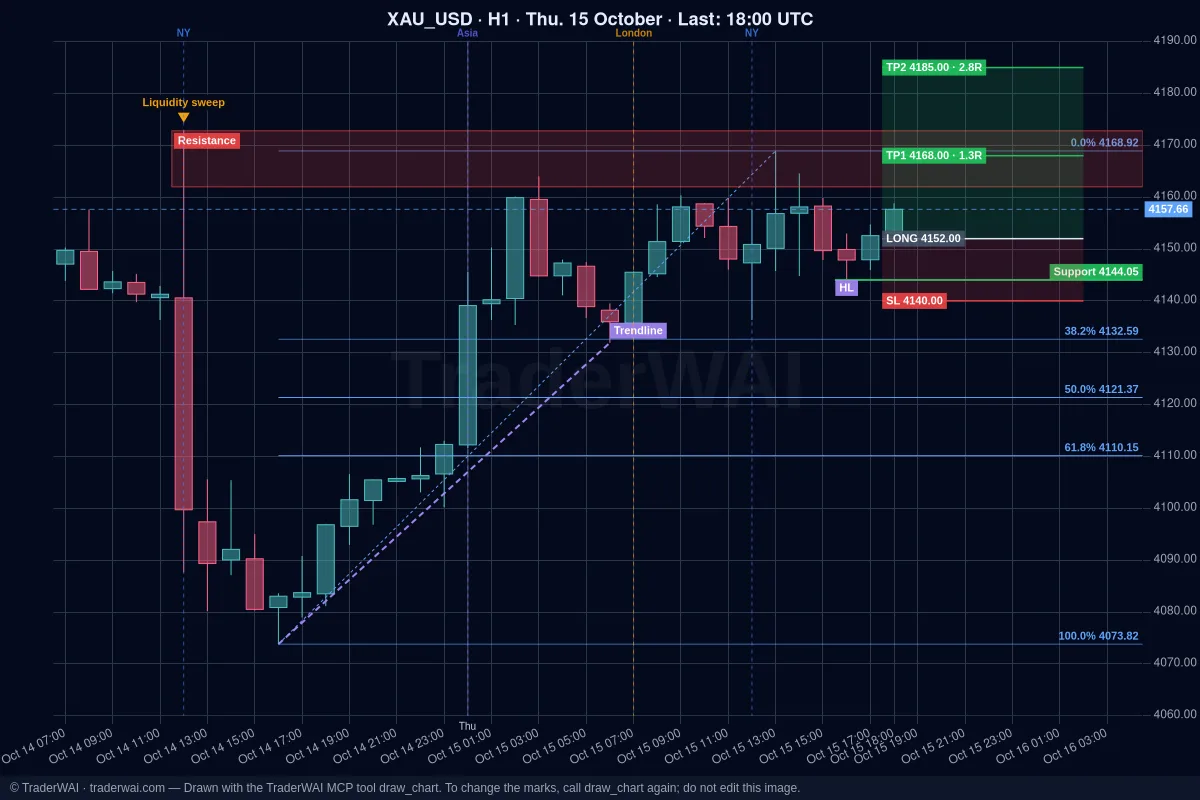
Cursor's Agent can write a strategy, test it and explain the result, but it can't see your MetaTrader 5 account. TraderWAI closes that gap with one MCP server: the Agent reads your MT5 balance and positions, gets your broker's live price, sizes a trade from your risk and places orders with a stop loss, always inside the limits you set on the TraderWAI website.
There is no Expert Advisor and nothing to keep open on your computer. TraderWAI connects to your broker's MT5 server from the cloud, so MetaTrader can stay closed.
What you need
- Cursor with Agent mode. For scheduled runs, a Cursor plan that includes cloud agents.
- An MT5 account, demo or live: the login (account number), the master password and the server name exactly as MetaTrader shows it. MetaTrader 4 works the same way.
- A TraderWAI account on the Trader or Max plan. MetaTrader is available on Trader (5 accounts) and Max (10 accounts), and any of them can be MetaTrader. Charts and analysis are free on every plan, and the first paid month is 50% off. See pricing.
Step 1: install the MCP server
The fastest route is the button on the Cursor + MT5 guide: Cursor opens with TraderWAI filled in and you confirm. To do it by hand, add this to ~/.cursor/mcp.json (all projects) or .cursor/mcp.json (one project):
{
  "mcpServers": {
    "traderwai": {
      "url": "https://mcp.traderwai.com"
    }
  }
}
Open Settings → Tools & MCP, click Login next to traderwai and sign in with Google or Microsoft. There is no API key to store in your repo: access goes through OAuth, and your TraderWAI account is created on that first sign-in.
Cloud agents: on cursor.com/agents, open the MCP dropdown, add a server with https://mcp.traderwai.com and sign in the same way. From then on, cloud agents and Automations can use the same tools on a schedule with your laptop closed.
Step 2: connect your MT5 account
- In TraderWAI go to Settings → Brokers → Add account → MetaTrader.
- Enter the login, the master password and the server exactly as in MT5 (for example ICMarketsSC-Demo). You find it in MetaTrader under File → Login to Trade Account.
- Save. The first connection takes 1 to 3 minutes while the terminal is prepared in the cloud; after that it's instant.
Start with a demo account. Everything works the same, and you see how the Agent behaves before real money is involved. Credentials are stored encrypted and are never shown to the AI.
Step 3: prompts for Agent mode
Open the chat in Agent mode. Cursor shows each tool call before running it, so you see exactly what is sent.
Read the chart (no trades)
Price on your MT5 account
get_quote with an account returns your broker's own bid and ask, not a generic feed, so levels match what MetaTrader shows.
Size by risk
TraderWAI does the sizing with your account currency and the symbol's contract specs, and never rounds the size up beyond your risk.
An order with a stop loss
The Agent calls execute_trade. Your risk limits are checked on the server before the order reaches MT5; if one blocks it, the tool returns RISK_LIMIT and nothing is placed.
A conditional order
TraderWAI checks conditional orders every minute on its servers, with Cursor closed. Ask "show my conditional orders" to see them, and cancel any at any time.
Step 4: a rules file that keeps the Agent safe
Create .cursor/rules/trading.mdc so every chat starts with the same guardrails:
---
description: Safety rules for MetaTrader through TraderWAI
alwaysApply: true
---
# Trading MT5 with TraderWAI

- Use my MT5 demo account unless I name a live account in this chat.
  Call get_broker_accounts first and say which account you will use.
- Before execute_trade, modify_position, close_position,
  create_conditional_order or suggest_order, show me: account,
  symbol, side, entry, stop loss, take profit and size.
  Wait for my explicit "yes".
- Every entry has a stop loss. Size by risk, at most 0.5% per trade.
- Call get_risk_limits first. If a tool returns RISK_LIMIT or
  PLAN_LIMIT, stop and explain. Never retry or work around it.
- Use backtest_strategy for backtests; never compute them yourself.
Also keep Cursor's auto-run off for the order tools. The rules file and Cursor's own confirmation are two separate locks.
Suggested orders and auto-execution
For cloud agents, or whenever you prefer to decide yourself, the Agent can use suggest_order instead of execute_trade. A suggestion must say which accounts and the size on each one (riskPct or lots), plus entry, stop loss, take profit and an expiry. Then, account by account:
- If you allowed that account to auto-execute that symbol at that size, TraderWAI places it right away.
- Otherwise it waits for your authorization and you get a notification. The size is never reduced to make it fit.
You set those permissions on the TraderWAI website under Settings → Auto-execution: which accounts, which symbols, maximum risk or lots and daily limits. The Agent can read them with get_auto_execution_config but can't change them. Auto-execution needs a paid plan; on Free, suggestions always wait for you.
Troubleshooting
- "The MetaTrader server was not found". The server name must match MT5 character by character, including -Demo, -Live or the number (Real30). Copy it from the MT5 login window.
- "MetaTrader rejected the login or password". Use the master password. The investor password is read-only and can't place orders. Connection attempts are limited to a few per day, so check the data before retrying.
- Symbol suffixes. Many brokers name symbols EURUSD.r, EURUSDm or XAUUSD+. You don't need to: TraderWAI maps the suffix automatically, so EURUSD works in prompts.
- The Agent doesn't use TraderWAI. Check that traderwai shows as connected in Settings → Tools & MCP, start a new chat in Agent mode and name it: "Use TraderWAI…".
- `PLAN_LIMIT` on MetaTrader. MT4/MT5 needs Trader or Max. On Free you can test the same flow with a cTrader or TradeLocker demo.
Common questions
Do I need MetaTrader open? No. The connection runs in the cloud; your terminal and computer can be off.
Does the Agent see my MT5 password? No. It's stored encrypted on TraderWAI and never shown to the AI.
Which model should I pick in Cursor? Any model that supports tool calls in Agent mode. Sizing, risk checks and order placement run on TraderWAI's servers, so they work the same with every model.
Can a cloud agent trade while I sleep? Only within what you allowed: suggested orders auto-execute on the accounts, symbols and sizes you permitted, and everything else waits for you. Rules that must fire on time are better as conditional orders, checked every minute.
Does it work with prop firms? If your firm uses MT5 and allows AI-assisted trading, yes. Set its rules as risk limits: see prop firm rules with AI. For backtests and the full Cursor loop, read build an AI trading bot in Cursor and a 24/7 trading agent with Cursor Automations.