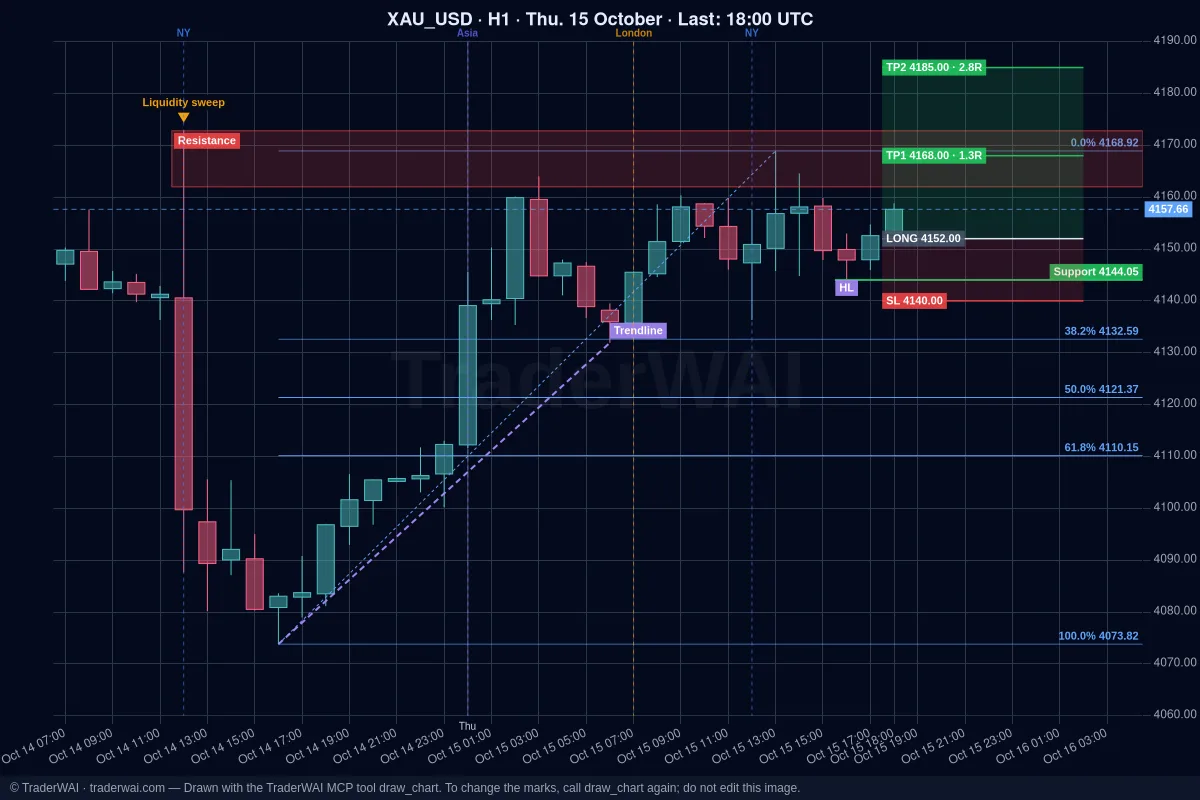
Cursor's Agent can read a codebase, run scripts and call tools. What it can't do on its own is see your cTrader account or send an order to it. TraderWAI adds that with one MCP server: once it's installed, the Agent can read live charts, check your cTrader balance and positions, get your broker's bid/ask, size a trade by risk and place orders with a stop loss, always inside the permissions and limits you set on the TraderWAI website.
cTrader is the easiest platform to connect: you sign in with your cTrader ID on cTrader's own page (OAuth), without typing or sharing a password. And it works on TraderWAI's Free plan.
What you need
- Cursor with Agent mode and any model that supports tool calls.
- A cTrader account, demo or live, linked to your cTrader ID. Brokers such as IC Markets, Pepperstone and FP Markets offer cTrader, and so do prop firms such as FTMO and FundedNext.
- A TraderWAI account. It's created the first time you sign in from Cursor. The Free plan includes 1 broker account, 5 order executions a day, 1 new conditional order a day (2 active) and unlimited charts.
Step 1: install the MCP server in Cursor
Use the install link: [Add TraderWAI to Cursor](cursor://anysphere.cursor-deeplink/mcp/install?name=TraderWAI&config=eyJ1cmwiOiJodHRwczovL21jcC50cmFkZXJ3YWkuY29tIn0%3D). Cursor opens with the server filled in; confirm it.
Or add it by hand to ~/.cursor/mcp.json (all projects) or .cursor/mcp.json (this project only):
{
  "mcpServers": {
    "traderwai": {
      "url": "https://mcp.traderwai.com"
    }
  }
}
Then open Settings → Tools & MCP, click Login next to traderwai and sign in with Google or Microsoft. There is no API key to store in your repo: access goes through OAuth. The Cursor + cTrader guide has the same button and config ready to copy.
Step 2: connect cTrader with your cTrader ID
- In the TraderWAI panel go to Settings → Brokers → Add account → cTrader.
- Click Connect with cTrader, sign in on cTrader's page with your cTrader ID and approve access.
- Choose the account (demo or live). Done.
You can also ask the Agent: "Use TraderWAI to connect my cTrader demo account." It returns an authorization link; open it, sign in with your cTrader ID and the account is saved. TraderWAI never receives your password, and you can revoke the access from your cTrader ID at any time.
Start with a demo account: everything works the same and mistakes cost nothing.
Step 3: prompts in Agent mode
Open the chat in Agent mode. Cursor shows each tool call before running it.
Read the market (no orders)
Your broker's live price. Charts come from TraderWAI's feed; orders fill at your broker's price. get_quote reads the bid/ask straight from your cTrader account:
Size by risk
TraderWAI sizes the order from the stop distance, your account currency and the symbol's specs on cTrader, and never rounds the size up.
Market, limit and stop orders
A STOP order waits at cTrader and triggers at the broker's price, so for a plain breakout it's better than a rule checked once a minute.
Proposals instead of orders. With suggest_order the Agent proposes a trade, and it must name the account(s) and the size of each one (riskPct or lots). What happens next depends on the auto-execution permissions you set per broker account on the TraderWAI website: which accounts, which symbols, maximum risk or lots and daily limits. If the order fits them, it executes right away with that size; otherwise it waits for your authorization and you get a notification. The size is never reduced to make it fit, and the AI can read those permissions (get_auto_execution_config) but can't change them. On Free, suggestions always wait for you; auto-execution starts with Plus.
Break-even and exit rules
TraderWAI checks conditional orders every minute on its servers, so Cursor can be closed. More in exit rules: CHoCH and break-even.
Step 4: a rules file for safety
Create .cursor/rules/trading.mdc so every chat follows the same rules:
---
description: Safety rules for trading cTrader with TraderWAI
alwaysApply: true
---
- Use my cTrader demo account unless I name a live account in this chat.
- Call get_broker_accounts first and say which account you will use.
- Before any order (execute_trade, suggest_order, modify_position,
  close_position, create_conditional_order) show me account, symbol,
  side, entry, stop loss, take profit and size. Wait for my "yes".
- Every entry has a stop loss. Risk at most 0.5% per trade.
- Call get_quote before any order and get_risk_limits before sizing.
- If a tool returns RISK_LIMIT or PLAN_LIMIT, stop and explain.
  Never retry or work around it.
Keep Cursor's auto-run off for the order tools too: the rules file and Cursor's confirmation are two separate locks. For a longer version with backtests, see build an AI trading bot in Cursor.
Prop firm accounts on cTrader
If your challenge runs on cTrader, check first that the firm allows AI-assisted trading. Then copy its rules into TraderWAI's risk limits for that account on the website: maximum daily loss, maximum drawdown, risk per trade, maximum lots, trading hours and symbols. Every order is checked against them before it's sent; one that would break a limit is blocked with RISK_LIMIT and not placed. Only you can change the limits; the Agent can only read them. Daily loss, maximum lots, open positions and trades per day are available from Plus; drawdown, risk per trade, trading hours and symbols are on Max. See prop firm rules with AI.
Troubleshooting
- The broker rejected the size. Each cTrader symbol has its own minimum lot and lot step, and they vary by broker and account type: some gold accounts, for example, need at least 0.1 lots. If the risk-based size is below the minimum, the order isn't sent with a bigger size. Widen the risk only if you accept it, or skip the trade.
- cTrader asks to reconnect. The cTrader ID authorization can expire or be revoked. Go to Settings → Brokers, reconnect the account with Connect with cTrader and sign in with the same cTrader ID.
- My account isn't in the list. It must be linked to the cTrader ID you signed in with. Open your broker's cTrader, check the account appears there, then connect again.
- The Agent doesn't use TraderWAI. Check that traderwai is enabled and logged in under Settings → Tools & MCP, and name it in the prompt ("Use TraderWAI…").
- A limit order filled at once. A buy limit must be below the ask and a sell limit above the bid. Ask the Agent to call
get_quotefirst.
Common questions
Is it free? Yes. cTrader is included in TraderWAI's Free plan, with 5 order executions a day. See pricing.
Does the Agent see my cTrader password? No. You sign in on cTrader's own page with your cTrader ID; the AI never sees any credentials.
Does Cursor need to stay open? Only while you chat. Orders sit at cTrader and conditional orders run on TraderWAI's servers.
Can the Agent trade without me? Only on the accounts, symbols and sizes you allowed for auto-execution on the website. Everything else waits for your authorization.
Is TraderWAI made by Cursor or Spotware? No. It's an independent service that works with Cursor through the open MCP standard and with cTrader through its official Open API authorization.