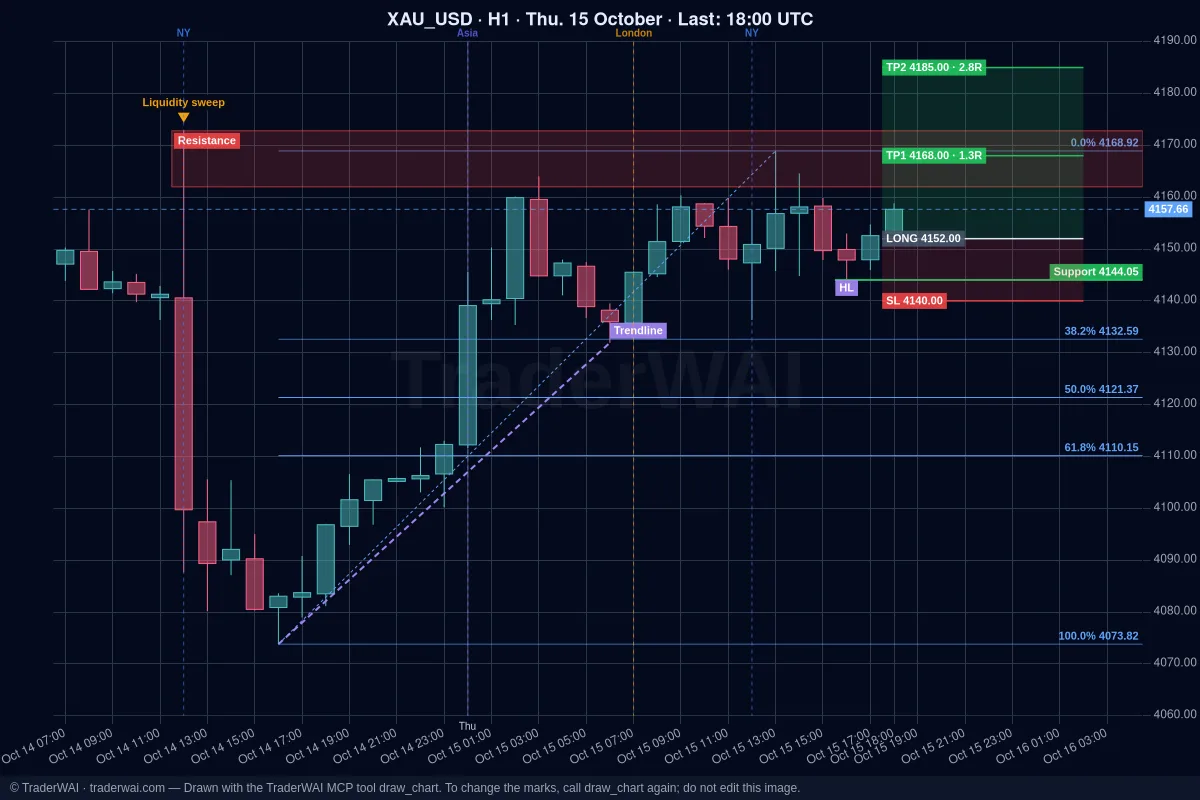
Most AI trading happens in a chat: you ask, the AI answers, you close the window and it stops. Cursor Automations change that. They run Cursor's cloud agents on a schedule, with your laptop closed, and they can use MCP servers. Add TraderWAI and that agent can read live charts, backtest rules on 1-minute history and look at your broker account every hour, every morning or every evening.
This guide sets up three useful agents and explains the one thing that matters most: what the agent should do, and what should run on TraderWAI instead.
Who does what
- The agent decides what to look at and writes the summary. It runs on a schedule (every hour, weekdays at 06:45…), calls TraderWAI's tools and sends you the result in Slack or keeps it in its memory.
- TraderWAI does the market and broker work. Charts and exact candles (
get_chart,get_ohlc), market structure (get_market_structure), backtests (backtest_strategy), your accounts and positions (get_broker_accounts,get_positions,get_trade_results) and orders, with risk limits checked on our servers that no agent can change. - Rules that must fire on time live on TraderWAI. An hourly agent can be 59 minutes late. A conditional order ("move my stop to break-even at 1R", "close at 20:45 UTC") is checked every minute by TraderWAI, whether any agent is running or not.
Step 1: add TraderWAI to your cloud agents
- Go to cursor.com/agents and open the MCP dropdown.
- Add a server with the URL
https://mcp.traderwai.com. - Sign in with Google or Microsoft when asked. There is no API key: access goes through OAuth, and your free TraderWAI account is created on that first sign-in if you don't have one.
Automations need a Cursor plan that includes cloud agents (Premium and above, Teams or Enterprise). Each run is billed as cloud agent usage, so start with market hours only.
For position and journal agents, link a broker account in the TraderWAI panel (Settings → Brokers → Add account). Start with a demo account: everything works the same. The market brief needs no broker.
Step 2: create an automation
Open cursor.com/automations and create a new one:
- Trigger: schedule. Use a preset or a cron expression (times are in UTC), for example
0 7-20 * * 1-5for every hour of the trading day on weekdays. - Repository: none. These agents only read the market and your account, so they don't need code.
- Tools: the TraderWAI MCP server, plus Send to Slack if you want the result in a channel.
- Prompt: one of the three below.
Agent 1: hourly position watch
The agent tells you; it doesn't act. If you want the stop to move by itself, see Step 3.
Agent 2: London session brief
Schedule: weekdays at 06:45 UTC (45 6 * * 1-5).
Before trading that breakout, test it: "backtest_strategy on EUR/USD, last 6 months: buy when an M15 candle closes above the Asian high between 07:00 and 10:00 UTC, stop at the Asian low, 2R target, close at 16:00 UTC". The free plan covers the last 14 days; paid plans go back 6 months to 2 years.
Agent 3: end-of-day journal
Schedule: weekdays at 21:15 UTC (15 21 * * 1-5). Turn on the agent's memory so it can spot patterns over weeks.
Step 3: let TraderWAI handle the timing
Ask any connected AI once, in plain words, and TraderWAI watches the rule every minute:
- "When my EUR/USD trade reaches 1R in profit, move the stop to break-even."
- "If an H1 candle closes back below 4,040 on gold, close my long."
- "Close my NAS100 position at 20:45 UTC if it's still open."
The AI creates a conditional order and shows you the rule before saving it. Use "show my conditional orders" to check them and cancel any at any time. Entry rules fire once and last up to 24 hours; if you want one every day, ask your morning agent to recreate it with that day's levels. On the free plan you can create 1 conditional order a day (2 active); paid plans allow more.
Guardrails
- Read-only by default. Write "do not place, modify or close anything" in every monitoring prompt. Orders only happen when you ask.
- Approval first. If an agent proposes a trade, have it use
suggest_order: the order waits in your TraderWAI panel until you approve it. - Risk limits on the server. Set daily loss, risk per trade and trading hours in TraderWAI. They are checked on every order, whoever sends it.
- Cursor rule. Add our ready-made rule file to your projects: traderwai-agent-recipes on GitHub, with these prompts and a few more.
What about Grok?
On grok.com you can add TraderWAI as a custom connector and use every prompt above in a chat. Grok Bot, xAI's always-on agent, is in beta and its custom MCP servers currently take a URL plus a fixed header, without a sign-in step, so it can't connect to TraderWAI yet. We'll update this guide when that changes.
Trading involves risk of loss. These agents describe the market and your account; they are not investment advice, and past results, including backtests, don't guarantee future results.