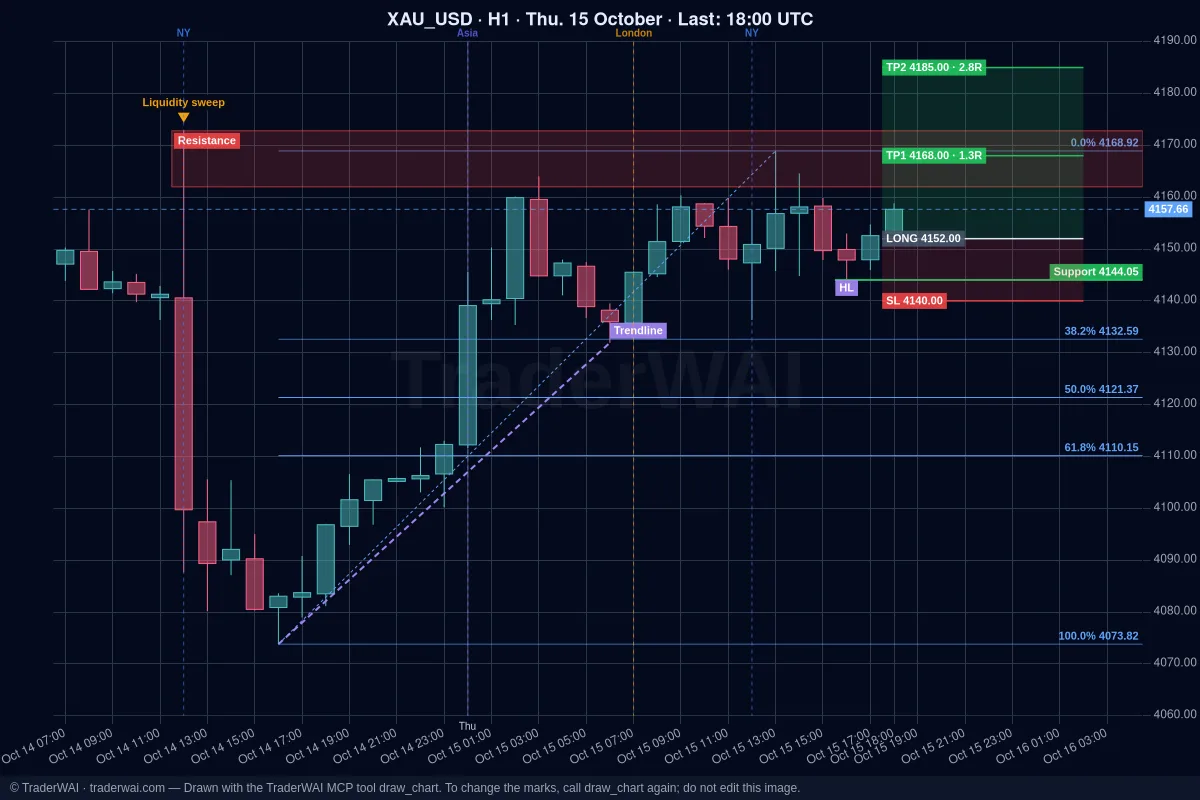
Grok searches the web and X in real time, so it knows what is moving the market. What it can't do on its own is see your MetaTrader 5 account or send an order. TraderWAI adds that: a connector (an MCP server) you add to Grok once. After that Grok can read your MT5 balance and positions, look at live charts, run backtests and prepare orders with stop loss and take profit that you approve.
No Expert Advisor, no code and nothing running on your computer: TraderWAI connects to your broker's MT5 server from the cloud.
What you need
- Grok with custom connectors on grok.com or the Grok app. At the time of writing, xAI offers them on its paid plans; if you don't see New Connector → Custom, your plan or region doesn't have it yet.
- An MT5 account, demo or live: the login (account number), the master password and the server name exactly as MetaTrader shows it. MetaTrader 4 works the same way.
- A TraderWAI account on the Trader plan or higher. MetaTrader accounts start with Trader, which includes one MetaTrader account; Max includes three. Charts and analysis are free on every plan, and the account is created when you authorize Grok.
Step 1: add TraderWAI to Grok
- Open [grok.com/connectors](https://grok.com/connectors) (in the app: Settings → Connectors).
- Click New Connector and choose Custom.
- Name:
TraderWAI. Server URL:https://mcp.traderwai.com - Save. A TraderWAI window opens: sign in with Google or Microsoft and allow access. If you don't have a TraderWAI account yet, it is created here.
- Open a new chat and check it works: "Using TraderWAI, show me the EUR/USD H1 chart."
The Grok + MT5 guide has a button that opens Grok's connectors and the URL ready to copy.
Step 2: add your MT5 account to TraderWAI
- In the TraderWAI dashboard go to Settings → Brokers → Add account → MetaTrader.
- Enter the login, the master password and the server exactly as they appear in MT5 (for example ICMarketsSC-Demo or Exness-MT5Trial8). In MetaTrader you see it in File → Login to Trade Account or under Navigator → Accounts.
- Save. The first connection takes 1 to 3 minutes while the terminal is prepared in the cloud; after that it's instant.
Start with a demo account: everything works the same and you can see how Grok behaves without risk.
Step 3: what to ask Grok
Positions and balance
- "Using TraderWAI, what's my MT5 balance and equity, and which positions are open with their floating P/L?"
Risk
- "How much am I risking in total on my open trades? Show my TraderWAI risk limits."
An order you approve
- "Look at gold (XAUUSD) on H4 and H1. If price holds support, prepare a buy limit with the stop below the last swing low and a 2R take profit, risking 0.5% of my balance. I'll approve it."
Before any order TraderWAI checks your broker's live price, sizes the trade from your risk and checks your risk limits. By default the order waits for your approval in TraderWAI (you get a notification); it is only sent on its own if you turned on auto-execution for that symbol.
A conditional exit
- "Create a rule on my EURUSD position: when it is 1R in profit, move the stop loss to break-even." TraderWAI checks conditional rules every minute, even with Grok closed.
A backtest
- "Backtest buying the London breakout of the Asian range on EUR/USD over the last 30 days, stop at the other side of the range, 2R target."
Grok can combine this with its own search: "What's the news on gold today? Then check the H1 chart and my open XAUUSD trade."
If it doesn't work
- Grok doesn't use the TraderWAI tools. Start a new chat and name it in your request ("Using TraderWAI…"). If it still doesn't, check in grok.com/connectors that the connector is there and connected; remove it and add it again if needed.
- The sign-in window doesn't open or loops. Allow pop-ups for grok.com and sign in with the same Google or Microsoft account you use on TraderWAI. Check the URL is exactly
https://mcp.traderwai.com. - "The MetaTrader server was not found". The server name must match MT5 character by character, including -Demo, -Live or the number (Real30). Copy it from the MT5 login window.
- "MetaTrader rejected the login or password". Use the master password: the investor password is read-only and can't place orders. Connection attempts are limited to a few per day, so check the data before trying again.
- "This account needs extra resources". Some broker accounts need more capacity on our MetaTrader cloud. Write to info@traderwai.com with your account's server and we'll enable it.
- No "New Connector" in Grok. Custom connectors aren't available on your plan or region yet. The same TraderWAI account works with Claude or ChatGPT, including their free plans.
Common questions
Is TraderWAI made by xAI or MetaQuotes? No. TraderWAI is an independent service that works with Grok through the open MCP standard and connects to your broker's MetaTrader server.
Does Grok see my MT5 password? No. Credentials are stored encrypted on TraderWAI and are never shown to the AI.
Do I need to keep MetaTrader 5 open? No. The connection runs in the cloud; your terminal and computer can be off.
Can Grok trade without me? Only if you turn on auto-execution for a symbol, with your own size and daily caps. By default every order waits for your approval, and your risk limits (max lots, open positions, trades per day, daily loss) are checked before each one. Grok can read the limits but never change them.
Does it work with prop firms? Yes, if your firm uses MT5 and its rules allow AI-assisted trading. Set its rules as TraderWAI risk limits: see prop firm rules with AI.
Can I try without paying? Charts, analysis and the connector itself are free. To try orders on the Free plan, connect a cTrader, TradeLocker or Match-Trader demo; MetaTrader starts with the Trader plan.