When you write a trading strategy in Trae, the hard part is rarely the logic. It is the data: finding a source, writing a scraper, fixing time zones and missing candles, and then building a backtester you have to trust. With TraderWAI added as an MCP server, Trae's agent calls real market data and a backtest engine directly, and you focus on the strategy code.
What the agent can do
- Pull real candles and prices: forex pairs, gold, silver, indices, oil, crypto and US stocks, on any timeframe (
get_ohlc,get_quote), and look at the chart (get_chart). - Backtest rule-based strategies on the server with 1-minute history: every trade, win rate, total R and drawdown (
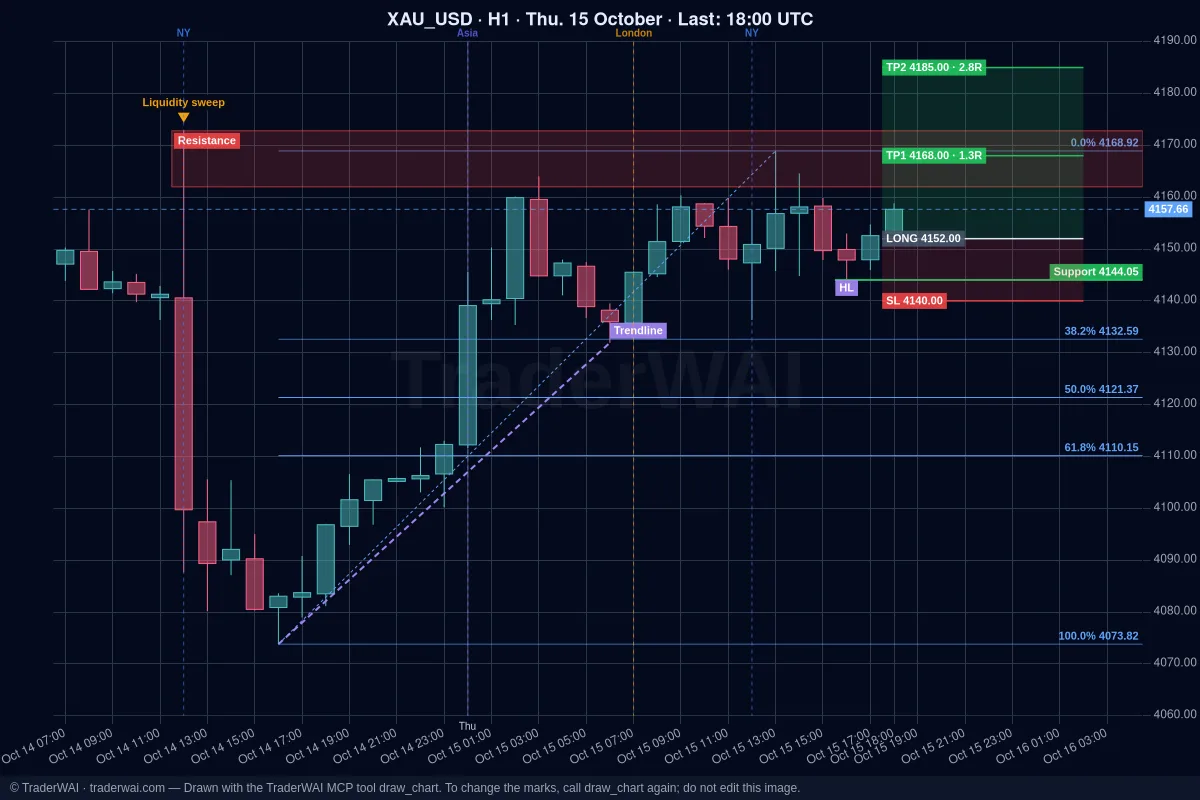
backtest_strategy). - Draw its analysis on a real chart: levels, zones, trendlines and a trade idea (
draw_chart). - Economic calendar and market structure:
get_economic_calendarandget_market_structure.
How to connect
These steps work in Trae (trae.ai) and Trae CN (trae.cn). Menu names may be worded slightly differently between the two.
- In the IDE window, open Settings → MCP.
- In the MCP servers area, click Add → Add Manually at the top right (the first time, there is also an Add Manually button in the middle of the area).
- Paste this configuration in the manual configuration window and click Confirm:
{
  "mcpServers": {
    "traderwai": {
      "url": "https://mcp.traderwai.com"
    }
  }
}- On the first connection, Trae opens your browser on the TraderWAI sign-in page (OAuth). Sign in with your Google or Microsoft account. If you don't have a TraderWAI account yet, it is created at this step, for free. There is no API key and no
headersto fill in. - Once you have signed in, TraderWAI appears in the MCP list. Configured MCP servers are added to the built-in agent automatically, and you can switch them on or off in the agent's edit page.
- Using a custom agent? Open Create Agent and, under Tools → MCP, tick TraderWAI and the tools you want it to use.
- Pick the agent in the chat and start asking.
If the server shows as not authorized, reconnect it from the MCP list or restart Trae and try again.
Example prompts
- "Use TraderWAI's get_ohlc to pull the last 500 H1 candles of EUR/USD, save them to data/eurusd_h1.csv and write a Python function that computes ATR(14)."
- "Use backtest_strategy over the last two weeks: buy gold when it breaks the Asian session high between 07:00 and 12:00 UTC, stop at the Asian low, target 2R. Don't compute anything yourself from candles."
- "Save the parameters you just sent as strategies/gold-asia-breakout.json so I can re-run it every week."
- "Show me the H4 market structure on the Nasdaq 100 and draw the key zones on the chart."
Why not scrape the data yourself
A home-made backtester has to handle sessions, time zones, spreads and the order in which stops and targets are hit. Each of those is a place for a bug. backtest_strategy simulates each trade minute by minute on the server, and the same rule gives the same result every time. Your code stays in the repo, the rule as a JSON file, and each version is in git. It is the same idea as our Cursor guides: backtest a trading strategy with Cursor and build an AI trading bot in Cursor.
What the Free plan includes
- Charts and market data, including
get_ohlc: unlimited. - Marked charts: 20 a day.
- Backtests: over the last 2 weeks of history. Paid plans unlock longer backtest history and more marked charts.
Analyses and backtests are educational and not investment advice.