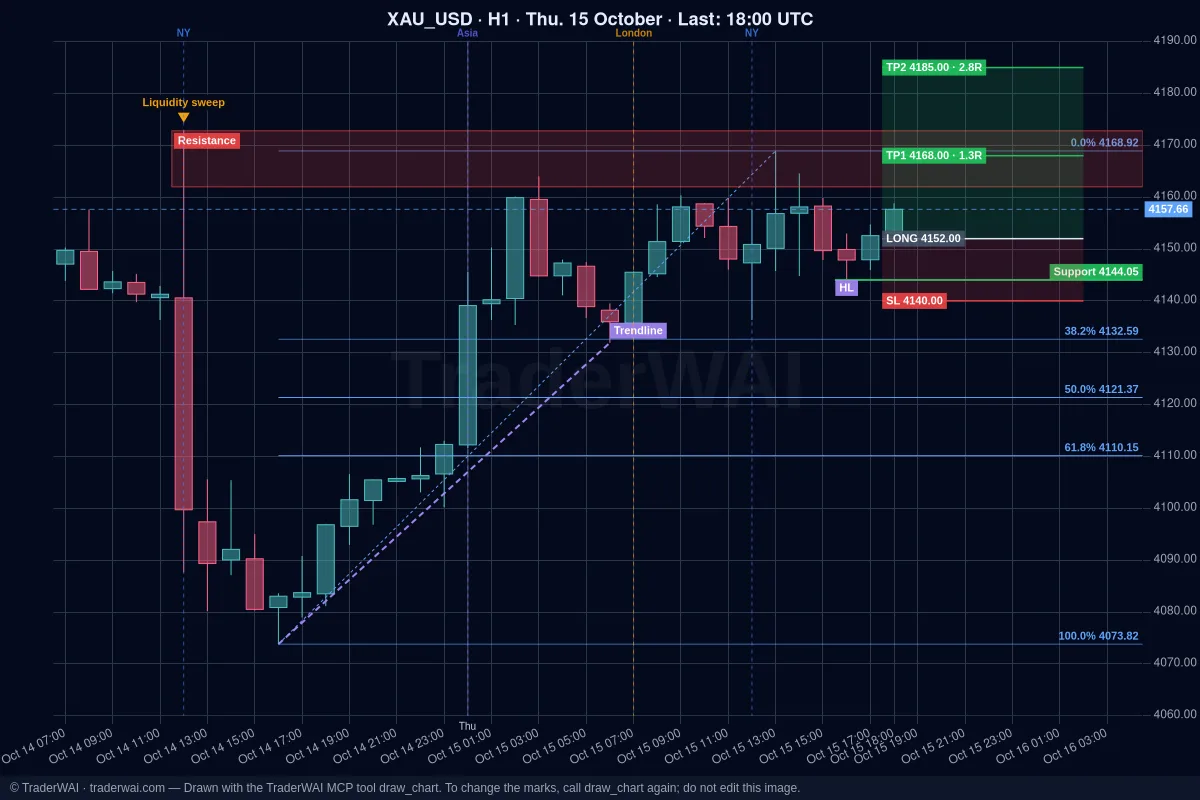
Cherry Studio lets you chat with almost any model: DeepSeek, Qwen, Kimi, GLM, Claude, GPT and more. What none of them can do on their own is see the market. Ask "where is gold heading?" and the model answers from its training data. Add TraderWAI as an MCP server and the same model can call real market data and chart tools instead.
What the model can do
- Read live charts and prices: forex pairs, gold, silver, indices, oil, crypto and US stocks, on any timeframe (
get_chart,get_ohlc,get_quote). - Draw its analysis on a real chart: levels, zones, trendlines and a trade idea with entry, stop and targets (
draw_chart). - Backtest rule-based strategies on 1-minute history. The server does the maths, not the model (
backtest_strategy). - Check the economic calendar for data releases and central bank events (
get_economic_calendar). - Read market structure: trend, breaks of structure and key zones (
get_market_structure).
How to connect
Use a recent version of Cherry Studio (remote MCP servers with browser sign-in are supported).
- Open Cherry Studio and go to Settings → MCP Servers, then click Add (choose Quick Create).
- Name: TraderWAI. Type: Streamable HTTP (streamableHttp). URL:
https://mcp.traderwai.com. Leave the headers empty: there is no API key. - Save and enable the server. Its status shows Waiting for authorization and your browser opens the TraderWAI sign-in page.
- Sign in with your Google or Microsoft account. If you don't have a TraderWAI account yet, it is created at this step, for free.
- Back in Cherry Studio, the status changes to Connected. The Tools tab of the server shows
get_chart,draw_chart,backtest_strategyand the rest. - In the assistant's settings, set MCP Mode to Auto (or Manual and add TraderWAI). The MCP panel in the chat input shows the status of the assistant's servers.
- Pick a model that supports tool calling (function calling), such as DeepSeek, Qwen, GLM, Kimi or Claude, and start asking.
If the browser doesn't open, or the status doesn't change after you sign in, disable and enable the server again or restart Cherry Studio.
Example prompts
- "Use TraderWAI to look at gold on the daily and H1 charts and draw the key support and resistance on the chart."
- "What is the H4 market structure on EUR/USD? Where was the last break of structure?"
- "Which high-impact releases this week could move the US dollar?"
- "Backtest the last two weeks: buy the Nasdaq 100 when it breaks the Asian session high during London, stop at the Asian low, target 2R. Don't compute anything yourself from candles."
What the Free plan includes
- Charts and market data: unlimited.
- Marked charts (
draw_chart): 20 a day. - Backtests: over the last 2 weeks of history.
Paid plans unlock more marked charts and longer backtest history. The model tells you when you reach a limit.
Tips
- Ask the model to look at the higher timeframe first and then the entry timeframe. The analysis is clearer.
- Leave backtests to
backtest_strategyand tell the model not to calculate them itself. A handful of trades proves little, so test over as many trades as your plan allows. - Cherry Studio makes it easy to compare models: ask the same question with another model. The data comes from the same source, so you are comparing the reasoning, not the prices.
Analyses and backtests are educational and not investment advice.